
How Much Power Does a CPU Consume – Find Power Draw
At the end you finally understand How Much Power a CPU Consumes and why it matters. A processor uses different watts based on workload and too much power can create extra heat. When you know the power use you can protect your processor by keeping it cool, preventing stress, and making sure it runs safely for a long time.
Your CPU might be using more power than you think. Are you protecting it the right way?
What CPU Power Consumption Really Means
CPU power consumption is the total amount of electrical energy your processor needs to do its job. Every second a CPU performs millions of operations and each operation requires electricity. This electricity turns into heat. The more calculations the CPU performs the more power it pulls and the more heat it creates.
Many users think power consumption is only about watts but it is actually about how hard your CPU is working. How efficiently it is built and how well your PC handles the heat that comes with it. When a CPU gets more voltage than required it starts drawing extra power and becomes hotter. When it receives less voltage it becomes unstable.
So understanding power consumption helps you balance performance, temperature, and long term safety of your processor. Good power control keeps the CPU healthy, prevents overheating, and ensures your system runs smoothly under all types of workloads.
Why CPU Power Changes Under Different Workloads
A CPU never uses the same amount of power all the time because its work is never the same. When you open simple apps like notepad or browse a website the CPU only needs a small amount of energy to stay active. But when you start gaming video editing, multitasking or running software that needs heavy calculations.
The CPU wakes up its high performance cores, increases clock speed and demands more power to keep up. Modern processors come with technologies like Turbo Boost and Precision Boost which automatically push the CPU to higher speeds when extra performance is needed.
This sudden jump increases watt usage. So the power draw is not fixed, it reacts to whatever task you are doing. Heavy tasks = high power. Light tasks = low power. This behavior is designed to give you fast performance when you need it and save electricity when you don’t.
Factors That Increase CPU Power Use
Many hidden factors increase CPU power draw and most users do not even notice them. High clock speed means the CPU is working faster which naturally demands more electricity. More cores and threads also require extra power because several parts of the CPU are active at the same time.
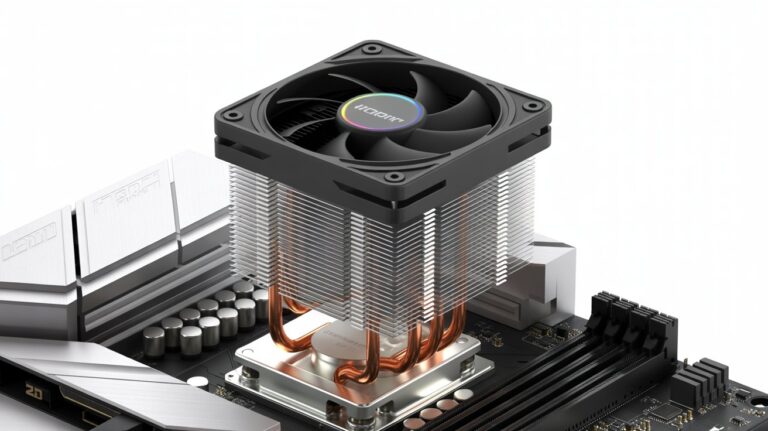
Heat is another major factor when temperatures rise the CPU struggles to maintain stability and pulls more power to keep performance steady. Old thermal paste dirty fans, poor airflow and dust buildup all cause the CPU to get hotter forcing it to draw more watts.
Background tasks also take a small chunk of power, and when too many of them are running the CPU has to work harder. Even outdated drivers or old BIOS versions can create irregular power usage. So CPU power consumption is affected by performance settings, cooling quality system cleanliness and the age of your components.
How to Check Your CPU’s Power Consumption Safely
Checking CPU power consumption is easy and completely safe when using the right tools. Applications like HWiNFO HWMonitor Intel XTU and Ryzen Master show accurate watt readings in real time. These tools help you understand how your CPU behaves when idle under normal use and during heavy workloads.
You can see how many watts the CPU pulls, what voltage it receives and how high the temperature goes. A safe and complete check involves testing power in three stages:
• Idle power (when you are doing nothing)
• Normal usage power (browsing watching videos light apps)
• Heavy load power (gaming editing stress tests)
By watching these numbers you know whether your CPU is under stress overheating or drawing more power than expected. Regular monitoring also helps you detect early problems like overheating faulty cooling or unstable voltage before they cause damage.
How Much Power Does a CPU Consume in Real Life Use
In real everyday use, CPU power is not constant. It keeps jumping up and down. A typical processor uses around 5 to 20 watts when the system is idle and nothing heavy is running. During normal activities like browsing YouTube or office work most CPUs consume around 30 to 70 watts.
When you start gaming performance mode activates and power usage rises to 80–120 watts depending on the game. Video editing, 3D rendering and programming workloads can push power above 150 watts. High end CPUs, especially those with many cores can even reach 200 watts or more during turbo performance.
Laptop CPUs use much less power because they are designed to stay cool inside thin bodies. Real life power consumption always depends on your cooling system CPU generation and the tasks you perform throughout the day.
Common Problems Caused by High CPU Power Use
When the CPU consistently consumes too much power it creates a chain of problems. Extra power produces extra heat which raises the temperature of the entire system. This can cause thermal throttling where the CPU slows down to protect itself. You may notice lag stutter in games longer loading times or even sudden shutdowns.
High power draw also pushes the fans to spin faster making your PC noisy. Over time excessive heat can damage the motherboard. VRMs weaken thermal paste and reduce the lifespan of the processor. High watt usage also increases your electricity bill especially if you use your PC for long gaming or editing sessions.
Worst of all constant overheating can lead to permanent performance loss and instability making your PC unreliable.
How to Reduce CPU Power Draw Without Losing Performance
Reducing CPU power usage without dropping performance is possible through a few smart steps. First improve your cooling, clean the fans, remove dust, add better airflow, and replace old thermal paste. Cooler CPUs automatically use less power.
Next use a balanced power plan on Windows which keeps the CPU efficient while still offering good speed. You can also turn off unnecessary startup apps and background processes that silently drain CPU power. Undervolting is another powerful technique.
It reduces the voltage supplied to the CPU without affecting performance resulting in lower temperatures and less power consumption. Enabling automatic fan curves, updating BIOS and managing CPU boost features responsibly can help the processor run cooler while still delivering strong performance.
Safe Power Limits Every User Should Know
Every CPU model has a recommended safe power limit known as TDP (Thermal Design Power). This value tells you how much heat and power the CPU is built to handle comfortably. Staying within this limit ensures long term stability and prevents overheating.
When the CPU crosses these limits too often it can trigger throttling instability or even damage to the power delivery system. Some motherboards let the CPU exceed TDP using boost features but this should only happen briefly, not continuously. Knowing your CPU’s safe watt range helps you fine tune performance and cooling.
Whether you use a laptop or desktop, maintaining a safe power zone is the best way to keep your processor healthy for years.
Best Tools to Measure CPU Power Accurately
Monitoring CPU power correctly depends on using reliable tools. HWiNFO gives the most detailed hardware readings including real time watt usage voltage and temperature. HWMonitor is simple and easy for beginners showing clear watt numbers and temperatures.
Ryzen Master and Intel XTU offer the most accurate readings for AMD and Intel CPUs because they are made by the manufacturers themselves. These tools also help you test performance changes when undervolting overclocking or adjusting power settings.
Using them regularly helps you understand how your CPU behaves under different tasks and keeps you alert to any unusual power patterns.
How Proper Power Control Protects Your Processor Long Term
Power control is one of the most important things for CPU health. When your CPU consistently stays within a safe power and temperature range it performs better, remains stable and lasts longer. Controlled power usage prevents overheating, stops voltage spikes and reduces wear on internal components.
Proper cooling, clean airflow, balanced performance settings and regular maintenance keep the CPU safe from stress. Over time this protects the processor from degradation, prevents system crashes and keeps your PC running smoothly.
A well managed CPU not only gives you better performance today but also ensures your system stays reliable for many years without unexpected problems.
FAQs
Does a high watt CPU always mean better performance?
Not always. Some high watt CPUs are powerful but efficiency also depends on architecture and cooling. A balanced CPU with lower watt usage can still perform extremely well when optimized.
Can a CPU use more power if the PC is infected with malware?
Yes Malware runs hidden tasks in the background forcing the CPU to work harder and draw more watts. Cleaning the system often brings power usage back to normal.
Does using multiple monitors increase CPU power usage?
A little bit but not too much. The GPU handles most display work but the CPU may use extra watts when rendering heavy apps or videos across screens.
Can outdated software cause the CPU to use more power?
Yes Old programs drivers and background services can become inefficient causing higher CPU load and unnecessary watt usage. Updating usually improves stability and power efficiency.
Does undervolting the CPU affect its long term health?
No Undervolting is safe when done correctly. It reduces heat and power draw helping the CPU stay stable and healthy for a longer time.
Conclusion
CPU power consumption matters more than most people think because it affects performance temperature and system life. When you understand how much power your processor uses you can keep it cooler, safer and more stable.
Small steps like clean airflow proper settings and regular checks make a huge difference. With the right control your CPU stays smooth, fast and reliable for years.