Do I Need To Reinstall Windows With New CPU – Optimize New CPU
Upgrading your CPU can feel risky, especially when Windows stability is at stake. This article explains what happens inside your PC after installing a new processor how Windows detects and adapts to it and whether a reinstall is really necessary.
You will learn common issues, fixes and best practices to ensure a smooth and stable CPU upgrade without unnecessary data loss.
Discover what really happens to Windows when you install a new CPU and whether reinstalling is truly needed.
What Happens Inside Your PC When You Install a New CPU
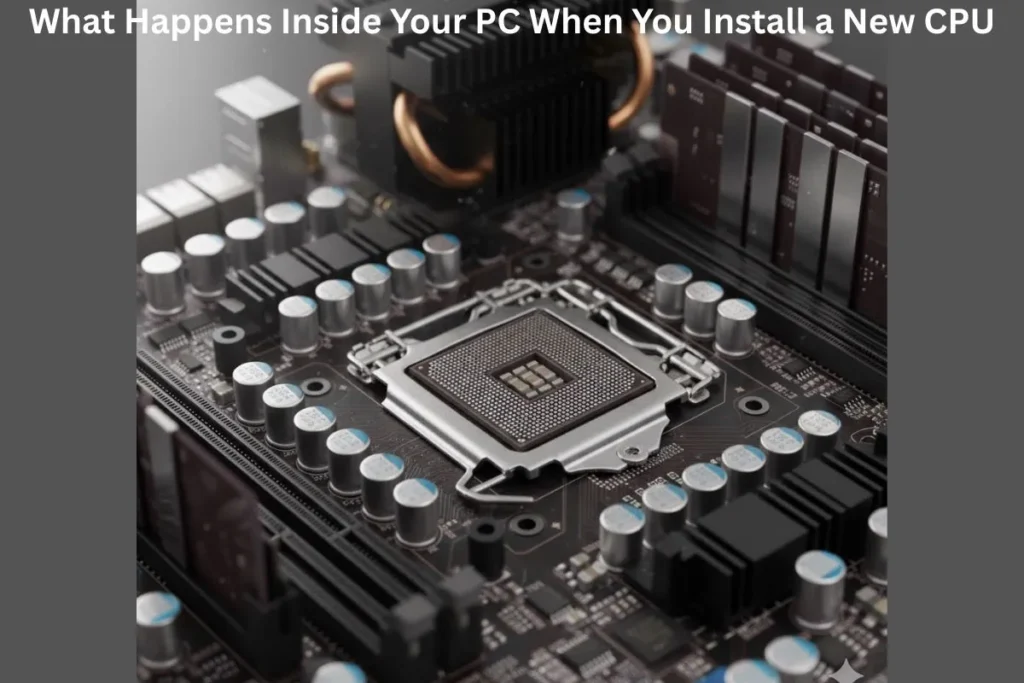
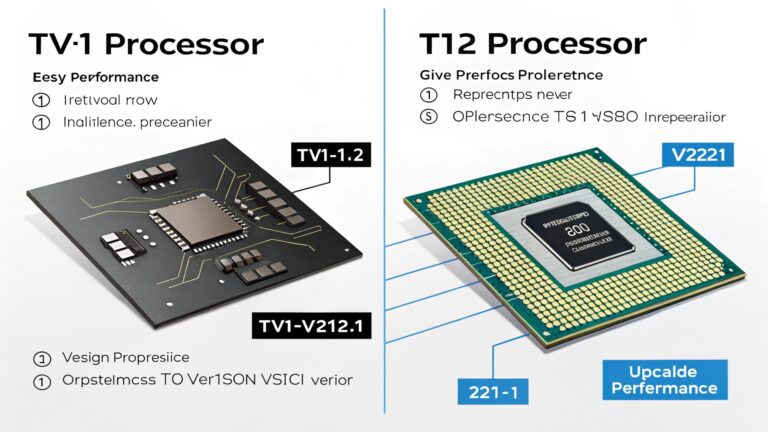
When you install a new CPU your computer undergoes several internal changes. The CPU is the brain of your PC responsible for processing instructions and running programs. Windows communicates with the CPU through drivers and system files.
CPU Detection Process
- When the PC boots the motherboard identifies the new CPU model core count and speed.
- Windows reads this data and adjusts system settings automatically.
- If the CPU architecture changes significantly some low level drivers may need updates but this is rare.
Overall the system adapts to most CPUs without requiring user intervention which is why a reinstall is not always necessary.
Do I Need to Reinstall Windows With New CPU? Full Explanation
Most users panic after upgrading a CPU asking “Do I need to reinstall Windows with new CPU?” The answer is usually no. Modern versions of Windows (Windows 10 and 11) are designed to handle processor upgrades automatically.
Cases Where Reinstall Is Rarely Needed
- Switching CPU brands (e.g., AMD → Intel).
- Using very old Windows versions incompatible with modern CPUs.
- Experiencing repeated crashes or hardware detection failures.
In most cases a simple restart after CPU installation is enough making the upgrade smooth and stress free.
How Windows Detects and Adjusts to a New Processor
Windows constantly monitors hardware changes. After installing a new CPU:
Automatic Adjustments
- Windows reads the CPU specifications and updates performance management.
- It installs or updates drivers automatically.
- It reconfigures boot files if needed.
User Friendly Handling
Even without reinstalling Windows can manage different core counts, hyper threading, or CPU speeds making most upgrades hassle free.
Reasons Why Windows Usually Works Fine Without Reinstalling
Several built in features allow Windows to adapt to a new CPU:
- Universal Drivers: Windows uses generic CPU drivers that cover most models.
- Hardware Profiles: Windows stores previous hardware settings to maintain stability.
- Activation Flexibility: Windows activation is tied mainly to the motherboard not CPU.
Because of these systems most upgrades do not require a full reinstall saving time and avoiding unnecessary effort.
Situations When a Windows Reinstall Becomes Necessary
Even though rare there are situations where reinstalling Windows is beneficial:
Common Scenarios Requiring Reinstall
- Changing CPU brands (AMD ↔ Intel).
- Using an outdated Windows version that lacks support for your new CPU.
- Experiencing repeated BSODs or system instability.
- Activation or licensing errors after the CPU change.
Reinstalling ensures clean drivers, stable performance, and reliable Windows activation.
Common Problems You May Face After a CPU Upgrade
While most CPU upgrades are smooth some users may encounter issues:
- Slow boot times or system lag.
- Random freezes crashes or BSOD errors.
- Task Manager showing incorrect core count or speed.
- Driver conflicts or missing chipset software.
Why These Problems Happen
These issues usually occur due to outdated BIOS missing chipset drivers or sudden hardware changes. They do not always require a Windows reinstall and are often fixable.
How to Check if Your Windows Is Stable After Installing a New CPU
After a CPU upgrade testing stability is crucial.
Simple Steps to Test
- Boot your PC normally and see if it starts without errors.
- Check Task Manager to verify CPU cores, threads, and clock speed.
- Run stress tests using Prime95 or AIDA64 for several minutes.
- Observe for freezes, crashes, or random errors.
If your system passes these tests Windows is stable and no reinstall is needed.
Steps to Prepare Your Windows Before Changing the CPU
Proper preparation prevents post upgrade issues.
Pre Upgrade Checklist
- Backup important files.
- Update Windows to the latest version.
- Update BIOS and motherboard chipset drivers.
- Uninstall old CPU tools or overclocking software.
- Power off and handle components carefully to prevent static damage.
Following these steps ensures a smooth CPU installation and reduces the chance of system problems.
Fixing CPU Related Windows Issues Without a Full Reinstall
If issues arise there are ways to fix them without reinstalling Windows:
Effective Fixes
- Update BIOS and chipset drivers.
- Run System File Checker using sfc/scannow.
- Reset power settings to default.
- Update Windows to the latest build.
- Remove software conflicts such as old CPU monitoring tools.
These methods resolve most problems efficiently saving time and keeping your current Windows intact.
Best Practices for Smooth CPU Upgrade and Long Term PC Health

Following best practices ensures your CPU and Windows perform well over time:
Tips for Longevity
- Use a compatible CPU for your motherboard.
- Keep BIOS and Windows updated.
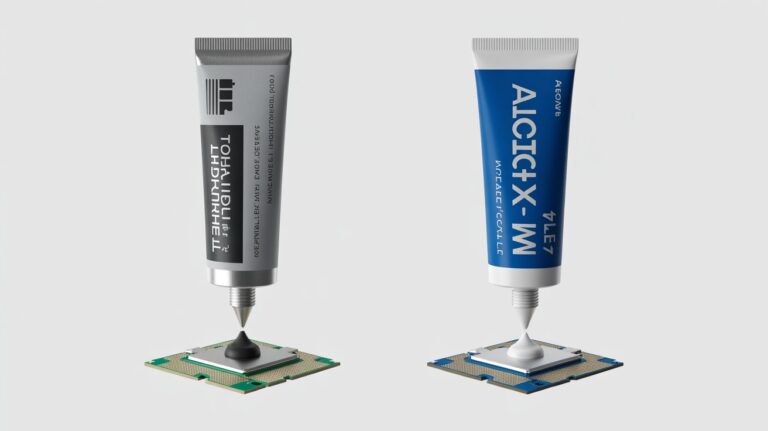
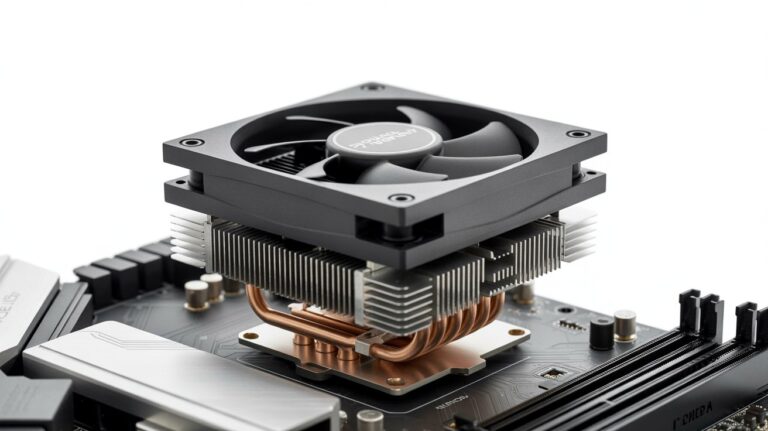
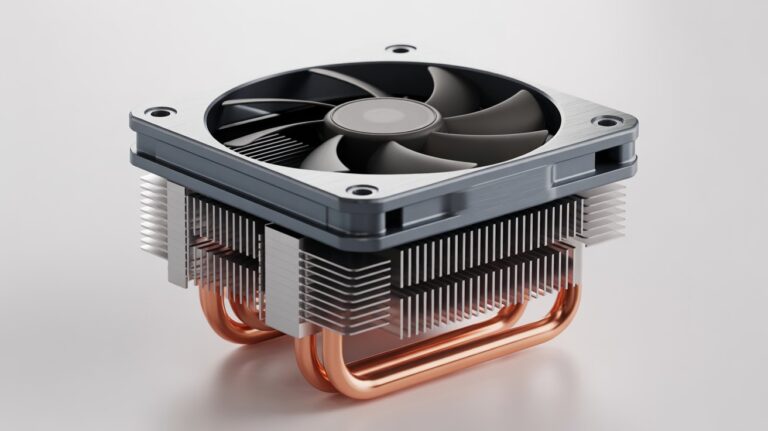
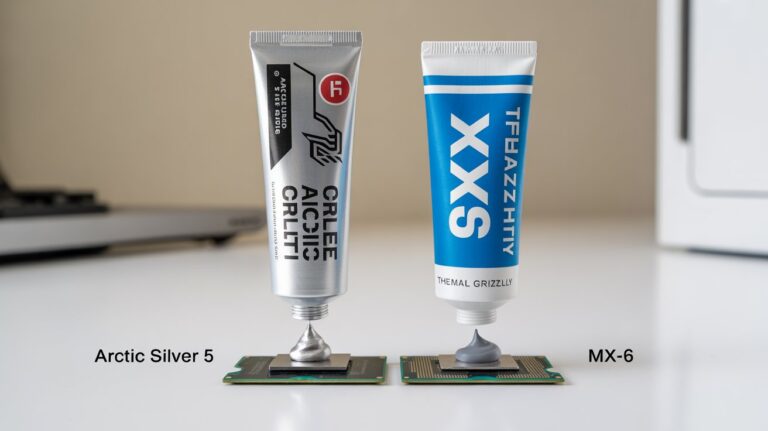
- Apply thermal paste properly and maintain cooling.
- Monitor CPU temperature and system performance after upgrade.
- Avoid unnecessary brand switching unless required.
Proper care ensures stability prevents overheating and keeps Windows running smoothly for years.
FAQs
Will Windows stop working if I change my CPU?
No Windows usually keeps working even after a CPU upgrade. Modern versions automatically detect the new processor and adjust settings. Problems only occur in rare cases such as switching CPU brands or using very old Windows versions. Most users can boot normally without reinstalling Windows.
How can I avoid errors after installing a new CPU?
To prevent errors, update your motherboard BIOS and chipset drivers before the upgrade. Backup your files, update Windows and uninstall any old CPU or overclocking tools. Proper preparation ensures Windows adapts to the new processor smoothly.
Can I upgrade my CPU from AMD to Intel without reinstalling Windows?
Switching brands is one of the few cases where a reinstall may be required. Windows might face driver conflicts or activation issues. If you experience crashes or instability after such a switch performing a clean reinstall ensures system stability and proper performance.
How do I know if my Windows is stable after a CPU upgrade?
You can check stability by monitoring boot performance CPU detection in Task Manager and running stress tests like Prime95 or AIDA64. If your system runs without crashes, freezes, or errors, Windows is stable and a reinstall is unnecessary.
What should I do if my PC lags after a CPU upgrade?
PC lag after an upgrade is often caused by outdated drivers or BIOS settings. Update your motherboard chipset drivers BIOS and Windows build. Reset power settings to default and remove conflicting software. Most lag issues can be fixed without reinstalling Windows.
Conclusion
Upgrading your CPU does not usually require a full Windows reinstall. Modern Windows versions can detect new processors and adjust automatically.
Only in rare cases like switching CPU brands or facing repeated errors is a reinstall needed. By preparing your system and updating drivers you can enjoy a smooth upgrade with stable performance.